
How to Register a Private Limited Company in Kenya
If you are wondering How you can Register a Private Limited Company in Kenya, this is the post for you. The process you follow is different from registering a business name. To do this you will use the new BRS V2 platform and eCitizen portal. The BRS V2 platform is an upgrade from the older Business Registration Service V1. This step by step guide walks you through all steps up to payments. Before we start, it is important to understand What Is a Private Limited Company? If you encounter problems, just contact us.
Related Post:
What Is a Private Limited Company?
A Private Limited Company (Ltd) is a separate legal entity from its owners. It can own assets, enter contracts, sue or be sued in its own name, and provides limited liability protection to shareholders. This structure is ideal for businesses that intend to grow, attract investors, or operate professionally.
A Business Name is not a separate legal entity from its owner, meaning the owner is personally liable for business obligations. A Private Limited Company is a separate legal entity that offers limited liability protection and can own assets, enter contracts, and continue operating independently of its owners.

Steps to follow to Register a Private Limited Company
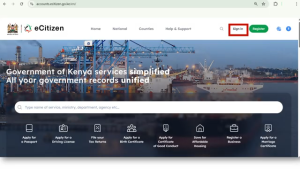
Step 1: Access the eCitizen Portal
The first step in registering a Private Limited Company is accessing the eCitizen portal. Visit the official eCitizen website and click the Sign In button.
Enter your email address or ID number together with your password. After signing in, the system will send a One-Time Password (OTP) to either your registered phone number or email address. Select where you want to receive the OTP, enter the code, and click Next to continue.
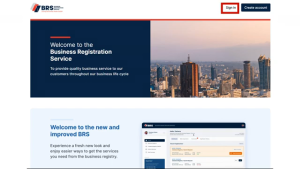
Step 2: Open Business Registration Services (BRS)
Once logged into eCitizen, confirm that the account details displayed belong to you. Scroll down through the available government services and locate Business Registration Services (BRS).
Click the BRS icon and choose the account you wish to use for the application. If you have previously registered businesses, they will appear under Organization Accounts. Otherwise, select your Personal Account and click Continue.
Step 3: Access the New BRS V2 Portal
Private Limited Company registration has now been moved to the new BRS V2 portal. To access it, click the public announcement link displayed on the old portal or navigate through Make Application.
Select Service Number 8 – BRS V2 and click Apply Now. On the new portal landing page, click Sign In and then select Login with eCitizen. Choose the account you want to use and click Continue. Under Company Registry Services, click Proceed to access the new application dashboard.
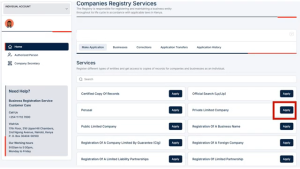
Step 4: Start a Private Limited Company Application
Once inside the BRS V2 portal, click Make Application. The portal will display several services available under Company Registry Services. Locate Private Limited Company and click Apply to begin the registration process.
Step 5: Reserve Your Company Name
The first stage of the application involves proposing your company name. Unlike the previous system, the new portal provides instant feedback on name availability. As you type a proposed name, the system suggests whether the name is likely available or too similar to an existing company.
Enter three proposed company names in order of preference. You can choose whether to use Ltd as an abbreviation or write Limited in full. If your company is affiliated with an existing organization, indicate this in the relevant section. Once satisfied with your proposed names, click Next.
Step 6: Complete the Articles of Association Section
The Articles of Association are the rules that govern how your company operates. They serve as the company’s internal constitution and outline the rights and responsibilities of directors and shareholders.
If you do not have your own Articles of Association, you can use the model articles provided by BRS. The portal provides a link where you can download and review the official model articles before proceeding. Alternatively, you may modify the model articles or upload a customized version prepared by yourself or a company advocate.
You will also be required to provide your application capacity, postal address, and postal code before proceeding to the next section.
Step 7: Enter Company Information
The next section requires you to provide information about the company itself. Start by selecting whether the company operates in a regulated or unregulated industry. Examples of regulated industries include healthcare, financial services, and education.
You must then state the primary objective of the company. For example, a bakery company may indicate that its main objective is baking and selling cakes. The portal will also require you to select the appropriate business sector, division, group, and class that best describe your activities.
In addition, specify your intended business start date, accounting period, accounting month, expected number of employees, and estimated annual turnover. You will also be asked whether the company is a subsidiary, branch, or was formed through an acquisition. Once all details are completed, click Next.
Step 8: Enter the Registered Office Address
Every Private Limited Company must have a registered office address. This address serves as the official location where legal notices and government communications can be delivered.
Complete all required fields including postal address, postal code, building details, town, and county. Any field marked with an asterisk is mandatory. Once the information is complete, click Next.
Step 9: Provide Share Information
The next stage involves defining the company’s share structure. You must indicate the type of shares the company intends to issue and their value.
Most companies use ordinary shares, which give shareholders voting rights and ownership in the company. The system also allows preference shares and other custom share classes if required.
Enter the number of shares you intend to issue together with the value of each share. The portal automatically calculates the nominal share capital based on the information provided. After completing the section, click Next.
Step 10: Add Directors and Shareholders
The ownership section allows you to add directors, shareholders, or individuals who serve as both directors and shareholders.
Click Add Director/Shareholder and select the appropriate designation. For Kenyan citizens, enter the ID number and first name before clicking Search. The system automatically retrieves and populates available information including names and KRA PIN details.
You must upload a passport-sized photograph for each person added to the company. Contact information and residential address details are also required. Once all information is entered, save the record.
Step 11: Allocate Shares to Owners
After adding directors and shareholders, you must allocate the shares entered in the previous section. Click Issue Shares and assign the appropriate number of shares to each shareholder.
If you are the sole owner of the company, you can add yourself as a Director/Shareholder and allocate all shares to yourself. Ensure that all issued shares are fully distributed before proceeding.
Step 12: Complete Beneficial Ownership Information
The new BRS portal integrates beneficial ownership information directly into the ownership section. A beneficial owner is the person who ultimately controls or benefits from the company, even if they are not publicly listed as a shareholder.
You will be required to indicate the person’s ownership percentage, voting rights, influence over company decisions, and rights to appoint directors. The system also requires an effective ownership date and information source. Once completed, save the details and continue.
Step 13: Add a Company Secretary (Optional)
The portal allows you to add a company secretary if your company requires one. You can indicate whether the secretary is an individual secretary or a joint secretary arrangement.
If adding a secretary, provide their identification details, contact information, and residential address before saving the information.
Step 14: Review and Download Company Documents
The final application stage generates all registration documents automatically. Download each document and carefully review the information provided.
Take time to verify company names, ownership details, share allocation, registered office address, and other important information. Any errors should be corrected before proceeding.
Step 15: Sign and Upload the Documents
After reviewing the generated documents, sign all required sections. Where necessary, obtain signatures from other directors, shareholders, or authorized persons.
Scan the signed documents and upload them back to the portal using the Choose File option provided. Once all required documents have been uploaded, click Complete.
Step 16: Pay the Registration Fee
The final step is payment of the company registration fee. The current fee for registering a Private Limited Company is KES 10,650.
The portal supports various payment methods including M-Pesa and card payments. After successful payment, your application will be submitted for processing.

How Long Does Company Registration Take?
In most cases, Private Limited Company registration takes approximately three working days. Processing times may vary depending on document verification and application volumes at the Business Registration Service.
Conclusion
The new BRS V2 portal has significantly improved the process of registering a Private Limited Company in Kenya. Features such as real-time company name suggestions, integrated beneficial ownership reporting, and a simplified application workflow make registration much easier than before.
Although the process is more detailed than registering a business name, a Private Limited Company offers greater credibility, legal protection, and growth opportunities. If you intend to operate a serious business, attract investors, or expand in the future, registering a Private Limited Company is often the best option.
Related: How to Register a Private Limited Company in Kenya
Frequently Asked Questions
How much does it cost to register a Private Limited Company in Kenya?
The current government fee for registering a Private Limited Company in Kenya is KES 10,650. This fee is paid through the eCitizen portal after completing the application process.
How long does it take to register a Private Limited Company in Kenya?
In most cases, company registration takes approximately three working days after successful submission and payment. However, processing times may vary depending on the volume of applications and document verification requirements.
Can one person register a Private Limited Company in Kenya?
Yes. A single individual can register a Private Limited Company and act as both the director and shareholder. In such cases, the person should be added as a Director/Shareholder during the ownership section of the application.
How many company names should I propose?
The BRS portal requires applicants to submit three proposed company names. The system now provides real-time suggestions and alerts if a proposed name is similar to an existing registered company.